The
AccessBus
Manual
One website.
Two sides.
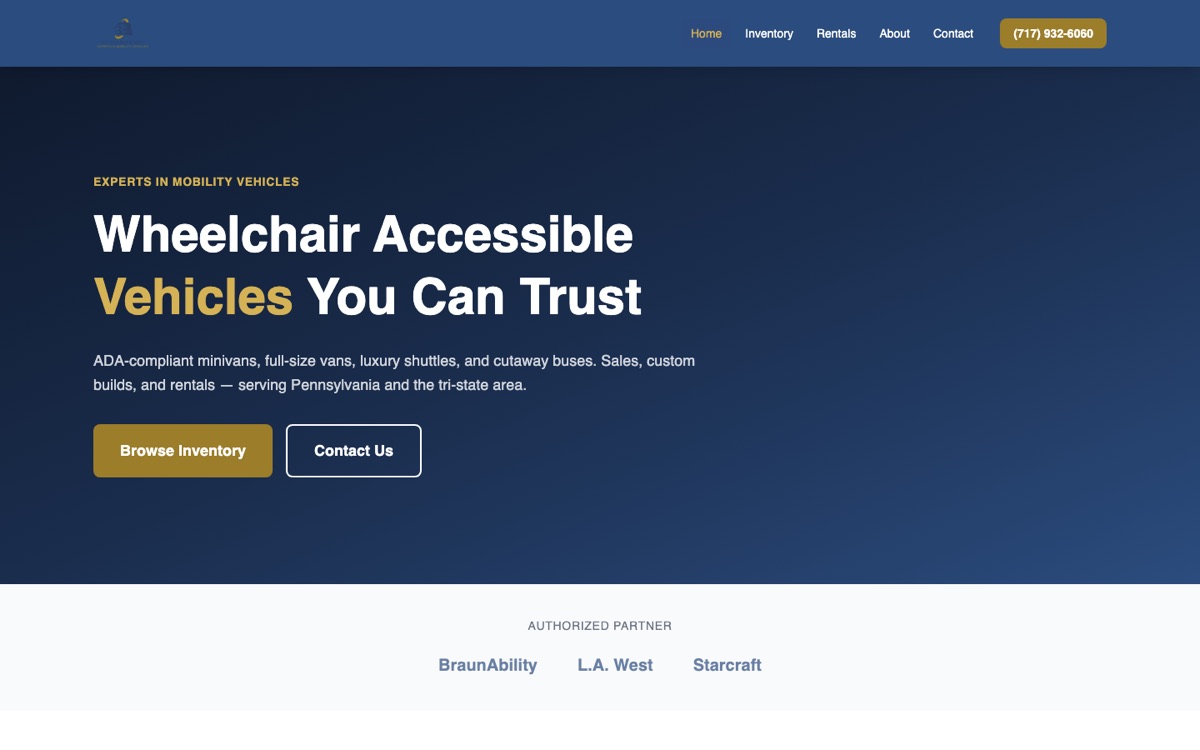
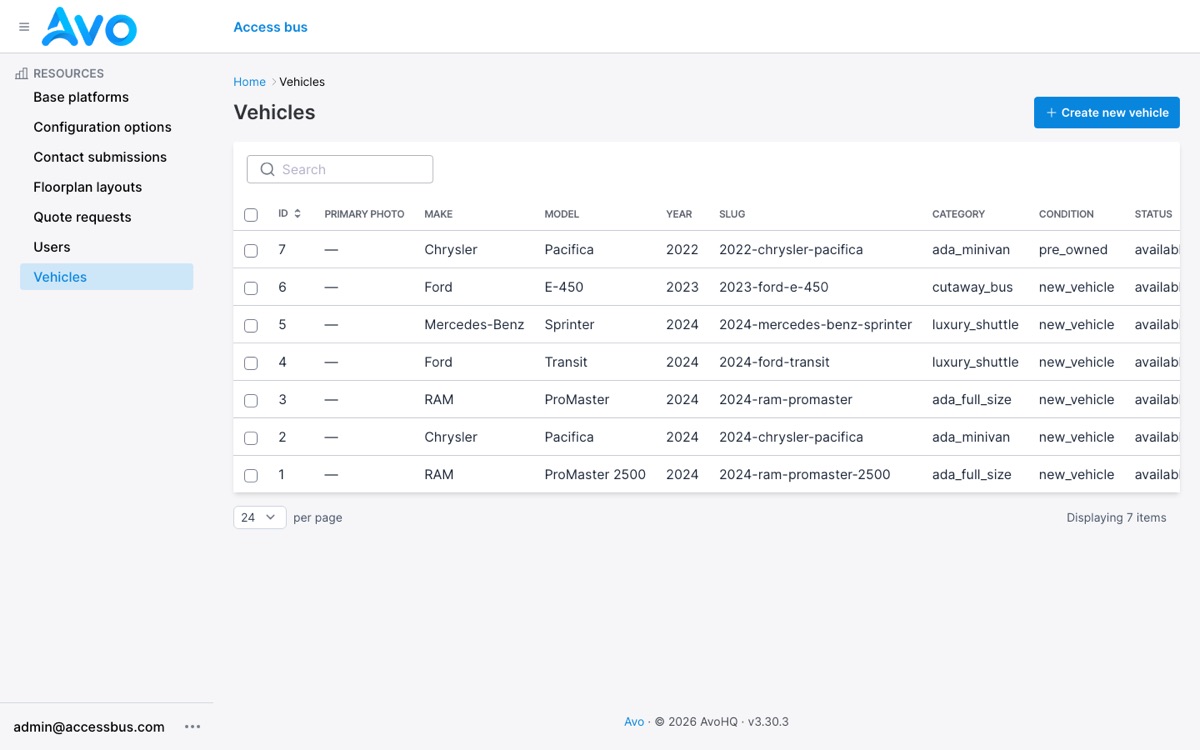
The storefront is what customers see: your inventory, prices, and contact forms. The admin panel is where you run it — every van, every photo, every price, and every lead that comes in.
You never edit the website directly. You edit the admin panel, and the storefront updates instantly.
Storefront
accessbus.fly.dev — public, no login.
Admin panel
accessbus.fly.dev/avo — yours, login required.
Getting in takes
thirty seconds.
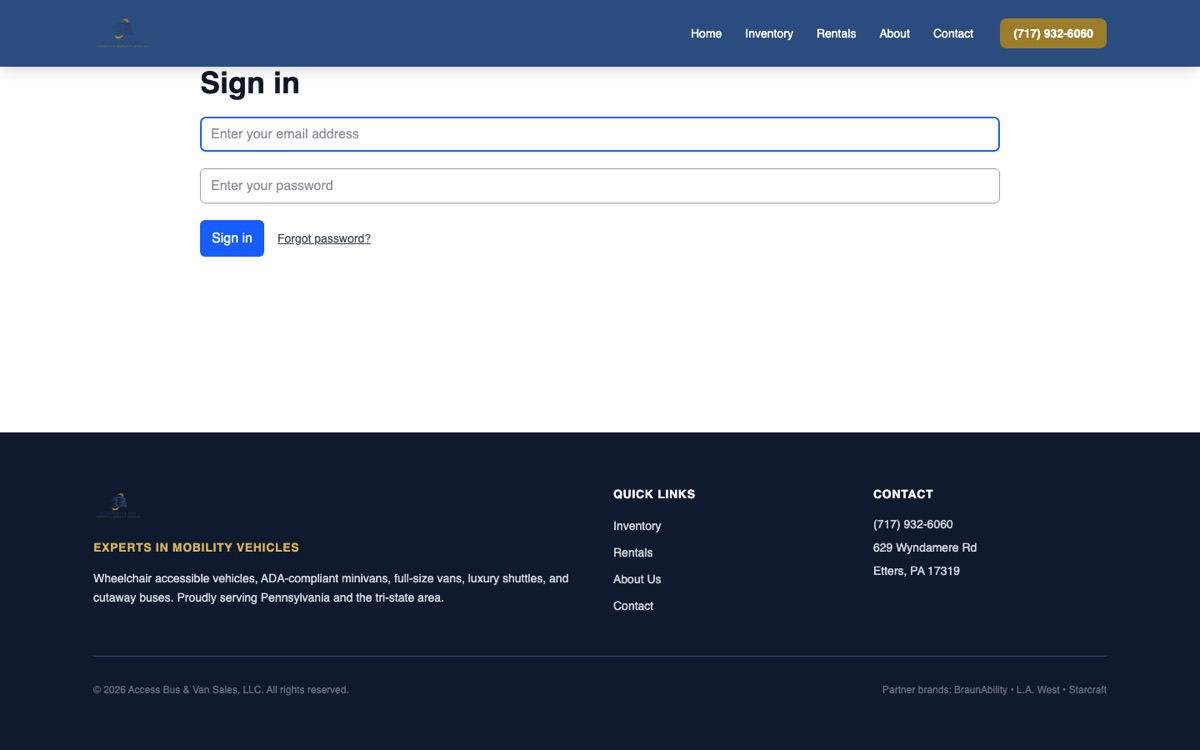
Go to the admin address
Type accessbus.fly.dev/avo in your browser. Bookmark it.
Enter your credentials
Email admin@accessbus.com and your password.
Click “Sign in”
You land directly in the admin panel — ready to work.
If you ever find yourself on the regular website instead, just go back to the /avo address — your login is remembered.
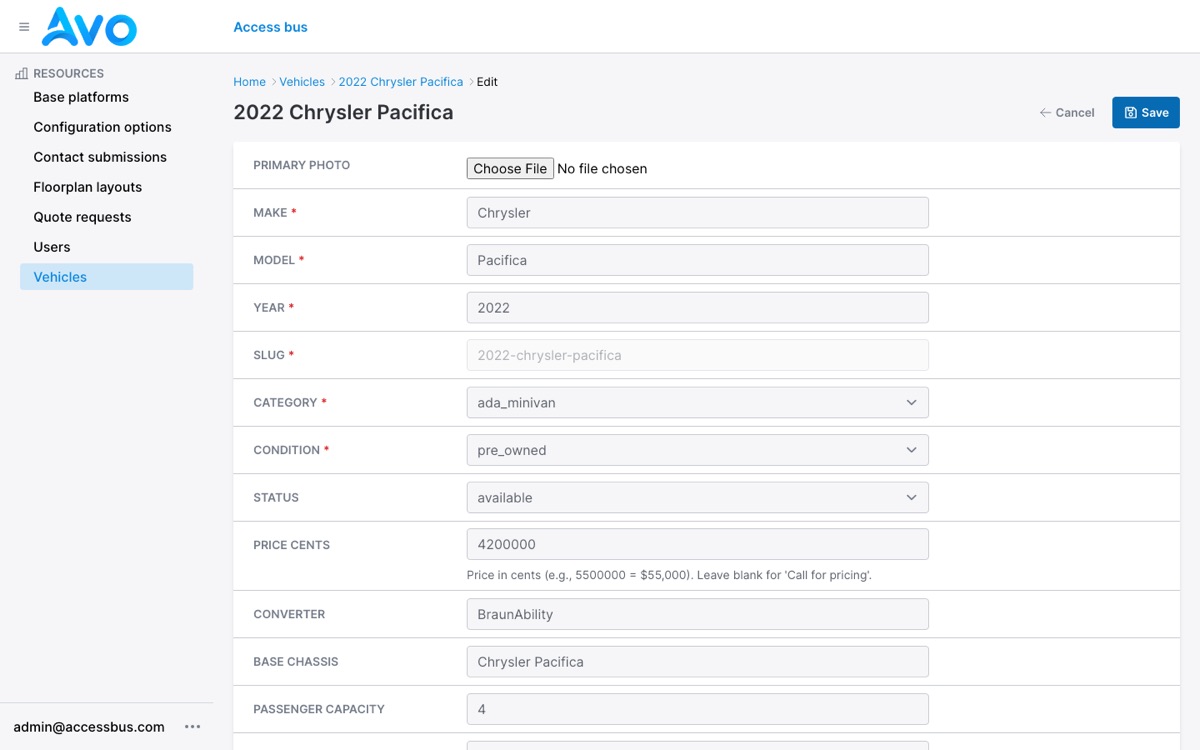
The sidebar is
your dashboard.
Vehicles
Your inventory. Where you'll spend most of your time.
Contact submissions
Messages from the contact form.
Quote requests
Custom-build quotes from the configurator.
Users
Who can log in. Leave this alone unless adding staff.
Click the row.
Click Edit. Save.
Open Vehicles, click any van
Clicking anywhere on a row opens that vehicle.
Click “Edit” (top right)
Every field becomes editable — price, description, capacity, condition.
Click “Save”
The storefront shows your change immediately.
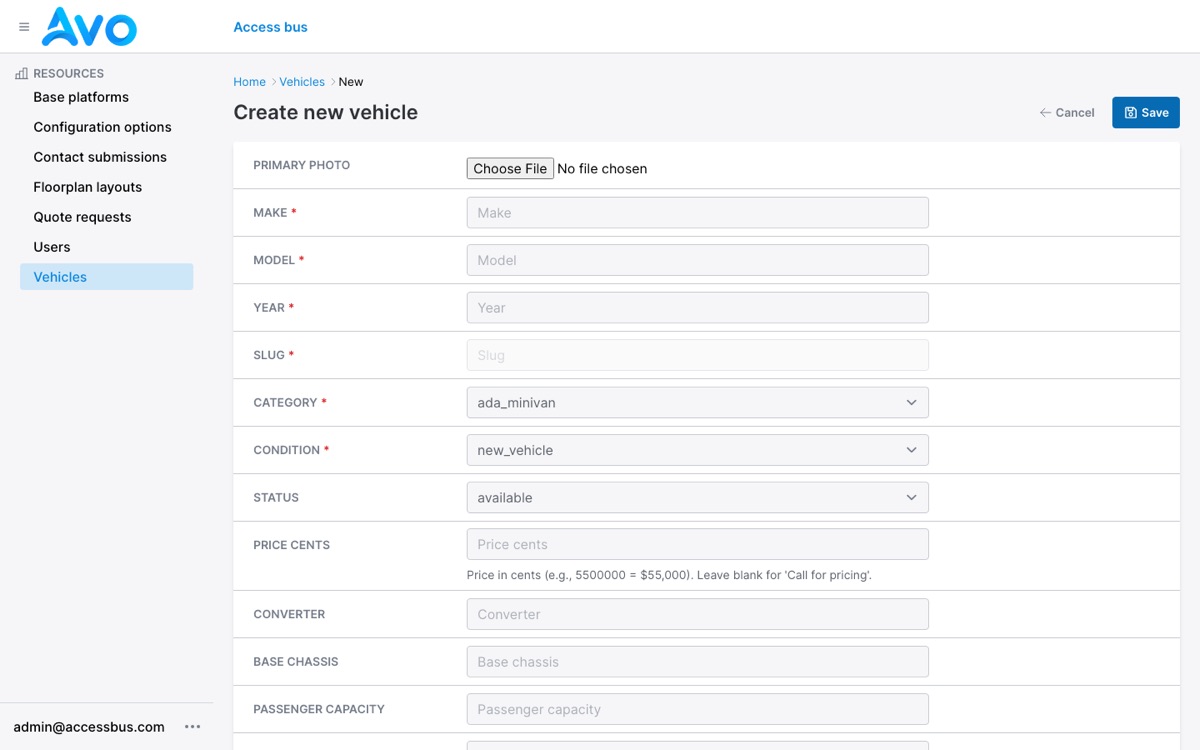
5500000 = $55,000. Add two zeros to the dollar amount. Leave blank to show “Call for pricing.”
Vans with photos
sell. Vans without
photos sit.
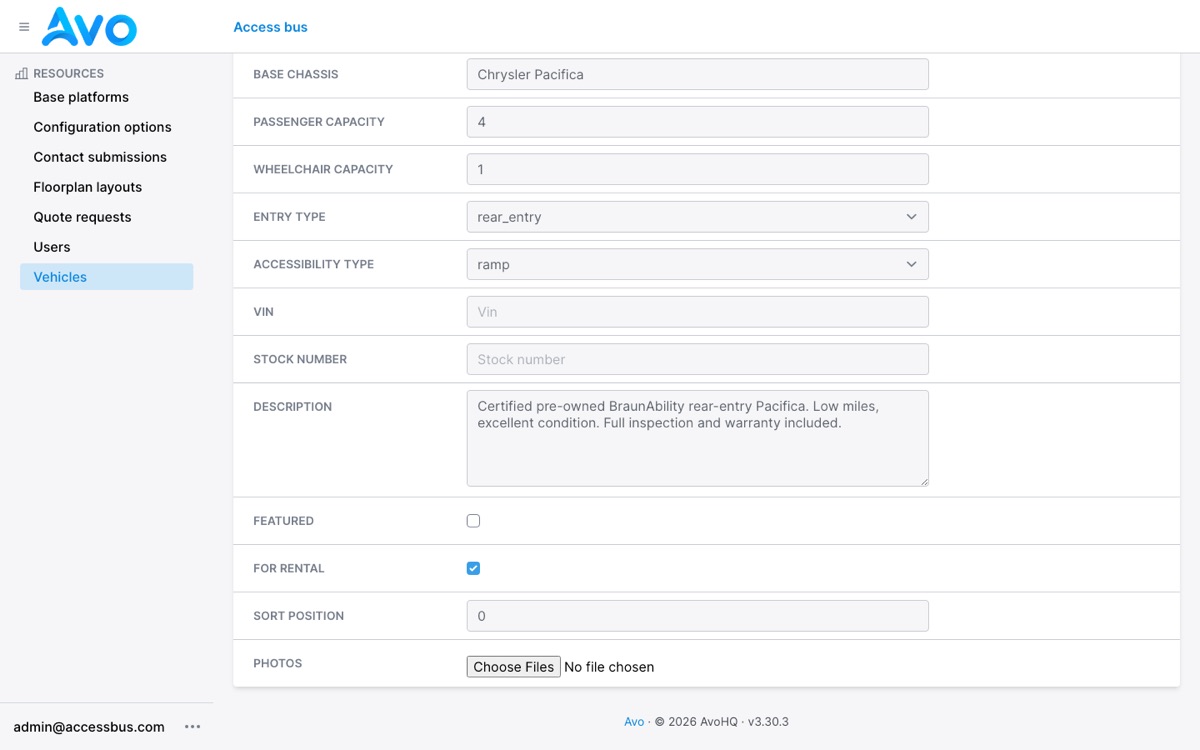
Open the vehicle and click Edit
Same as editing any other detail.
Primary photo
The one field near the top — this is the main image customers see in the inventory grid.
Photos (gallery)
Scroll to the bottom. Click “Choose Files” and select as many pictures as you want.
Save
Uploads finish, the listing updates.
A new van hits the lot?
List it in five minutes.
Vehicles → “+ Create new vehicle”
Blue button, top right of the list.
Fill the required fields
Make, model, year, category, condition. Everything marked * must be filled.
Add the details buyers ask about
Passenger capacity, wheelchair capacity, entry type, VIN, stock number, description.
Upload photos, then Save
The van appears on the storefront the moment you save.
Tick Featured to pin it on the homepage. Tick For rental if it belongs on the Rentals page.
Two lists in the sidebar hold every customer who reached out. Check them daily.
Anyone who fills out the Contact form on the website — name, phone, email, and their message. These are warm leads: call them back the same day.
Sidebar → Contact submissionsCustomers who used the custom order configurator — they picked a platform, options, and left contact info. These are your hottest leads: they've already spec'd the van they want.
Sidebar → Quote requestsEverything you edit
shows up here.
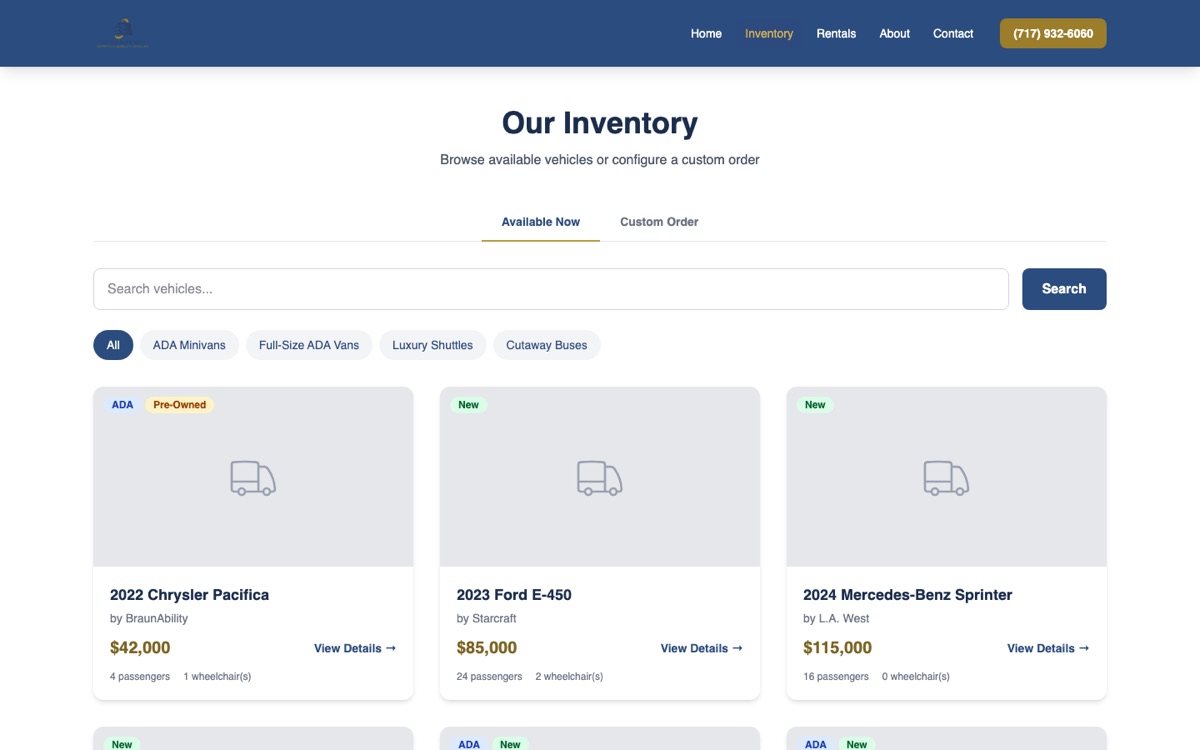
The inventory page lists every vehicle with status available. Customers can filter by category, search, and request quotes.
Sold a van?
Edit it and change Status — it disappears from the storefront. No need to delete it.
Want it on the homepage?
Tick Featured on the edit form.
Double-check your work
After saving, open accessbus.fly.dev in another tab and look at the listing like a customer would.
Admin panel
accessbus.fly.dev/avo
Login
admin@accessbus.com + your password
Prices
Entered in cents — 5500000 = $55,000
Leads
Contact submissions + Quote requests — check daily
Stuck?
Text Matthias. Nothing you do in the panel can break the website.